Open VirtualBox 1
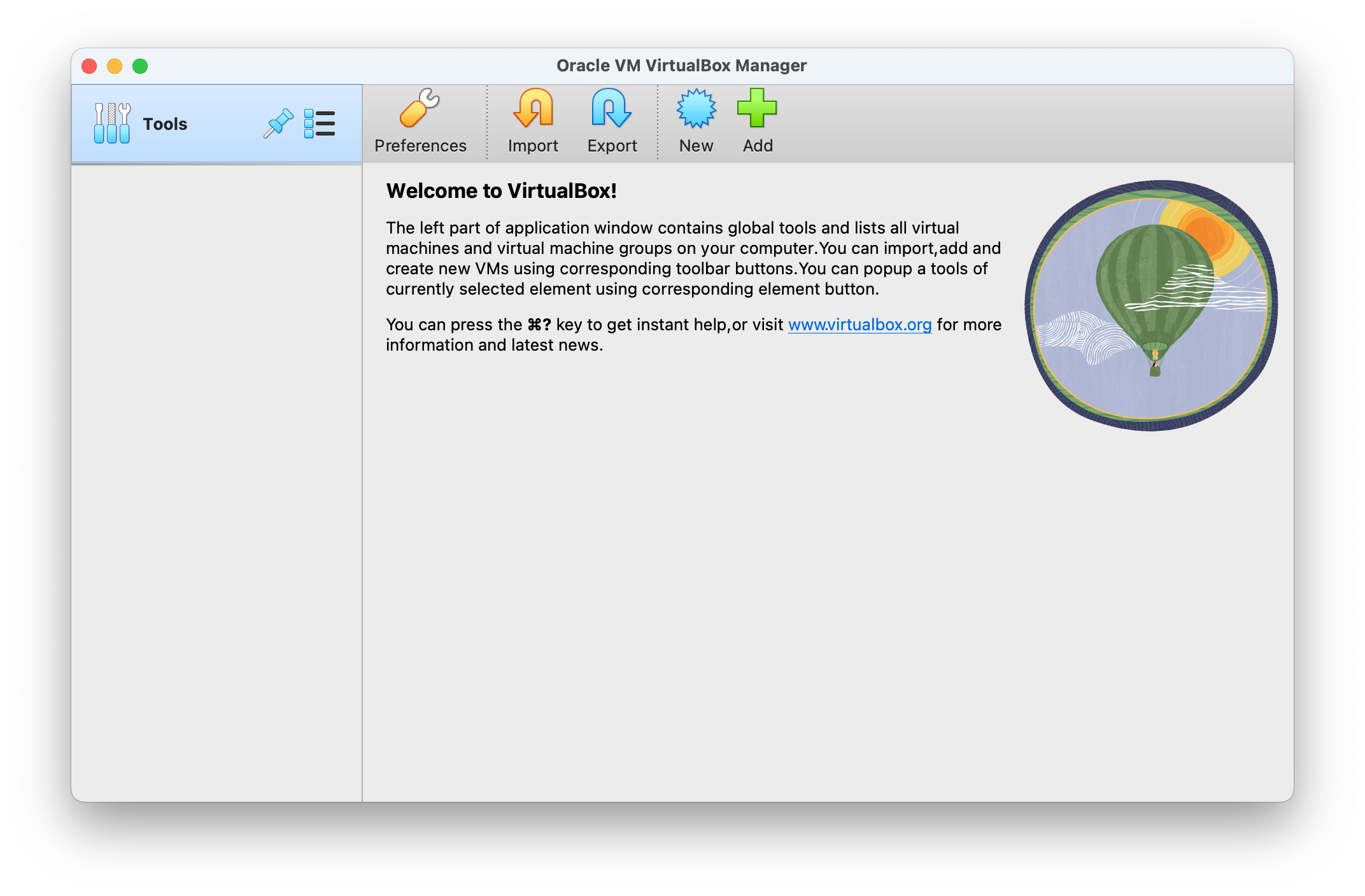
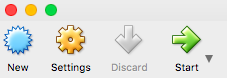
In the VirtualBox Manager window, click on the "New" button (a blue spiky circle)
On Create Virtual Machine window
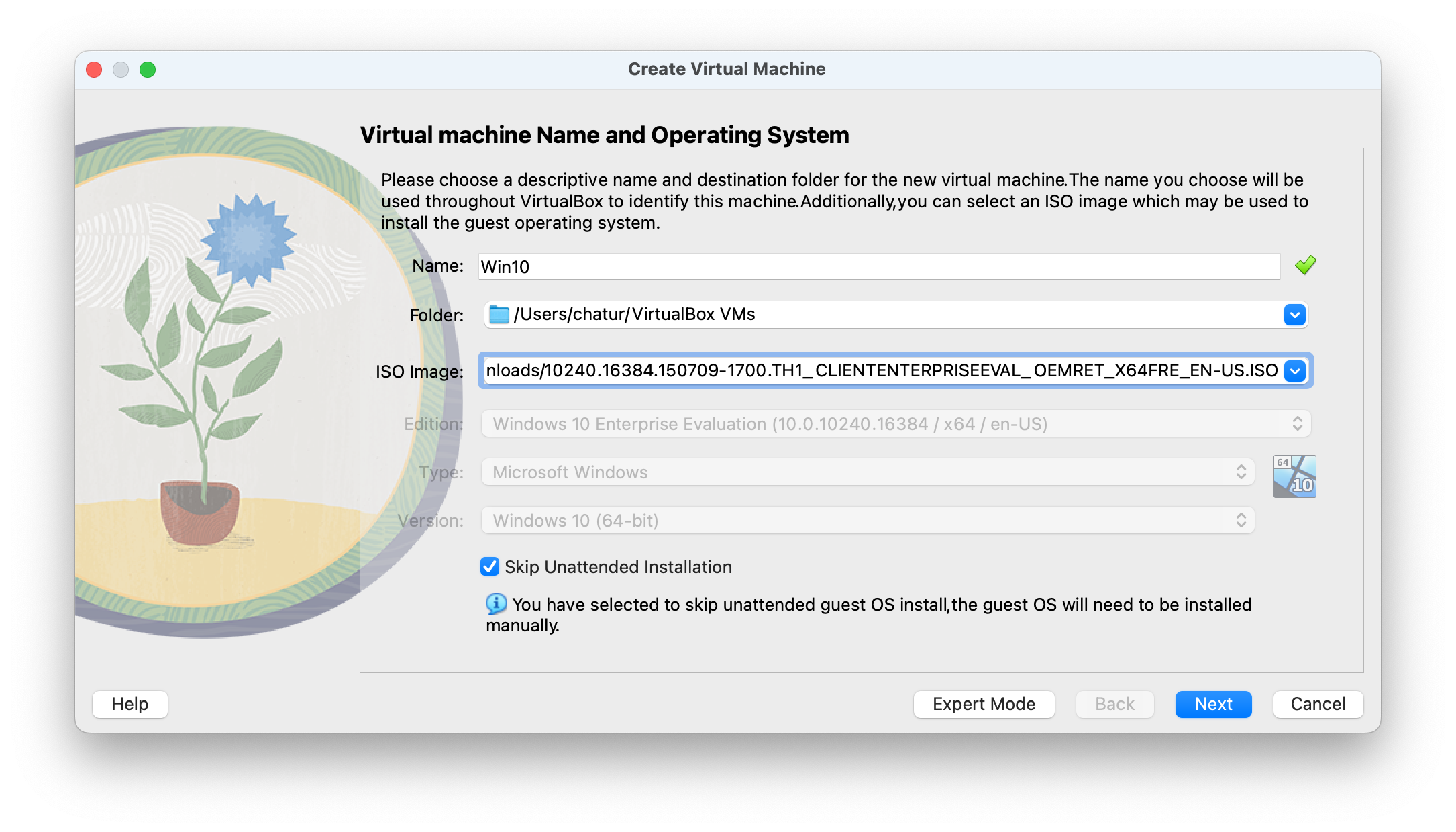
- Give virtual machine name
- Choose Windows ISO
- Check Skip Unattended installation
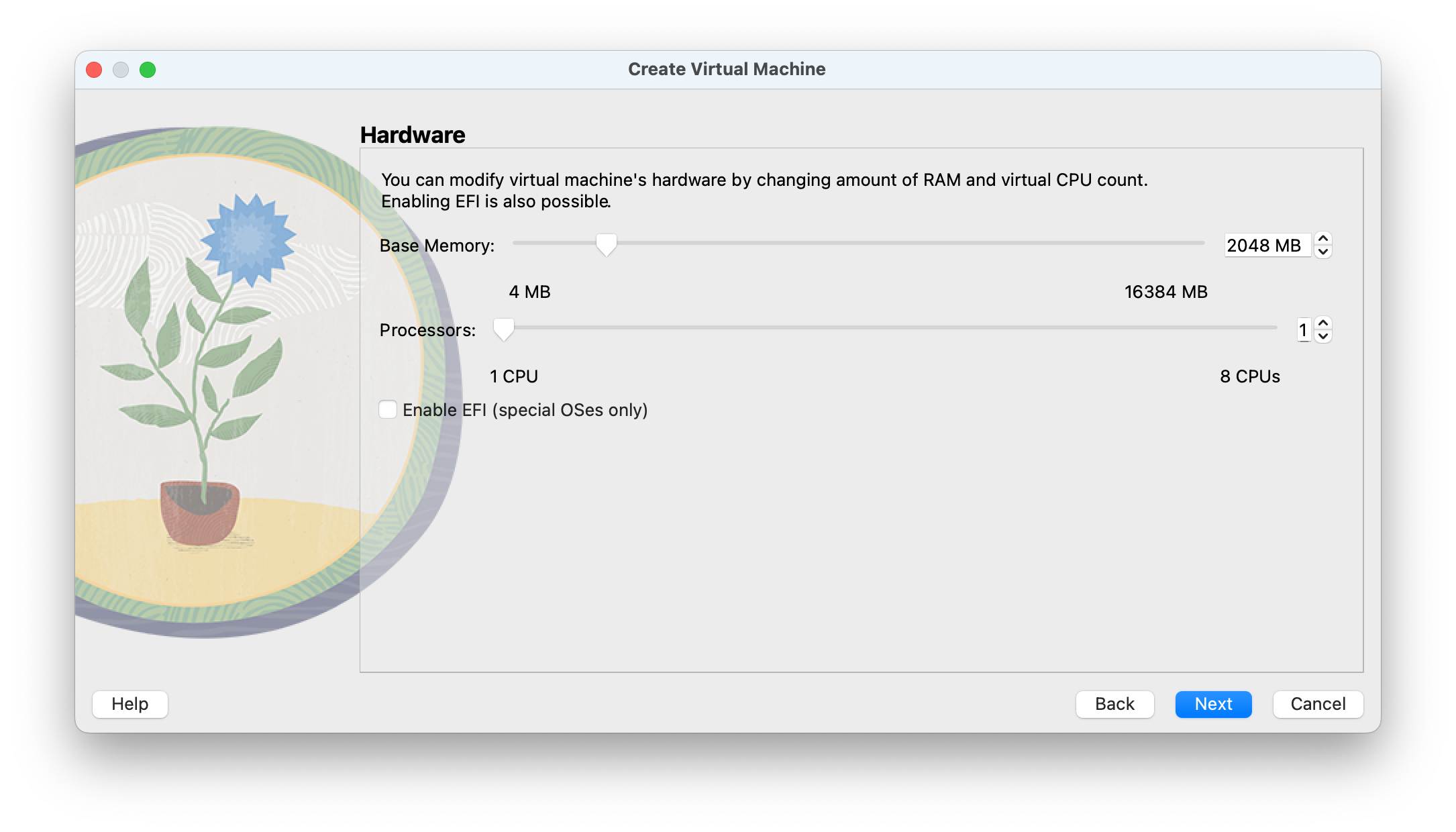
On next window, Set no of Memory and Processors allocated to VM
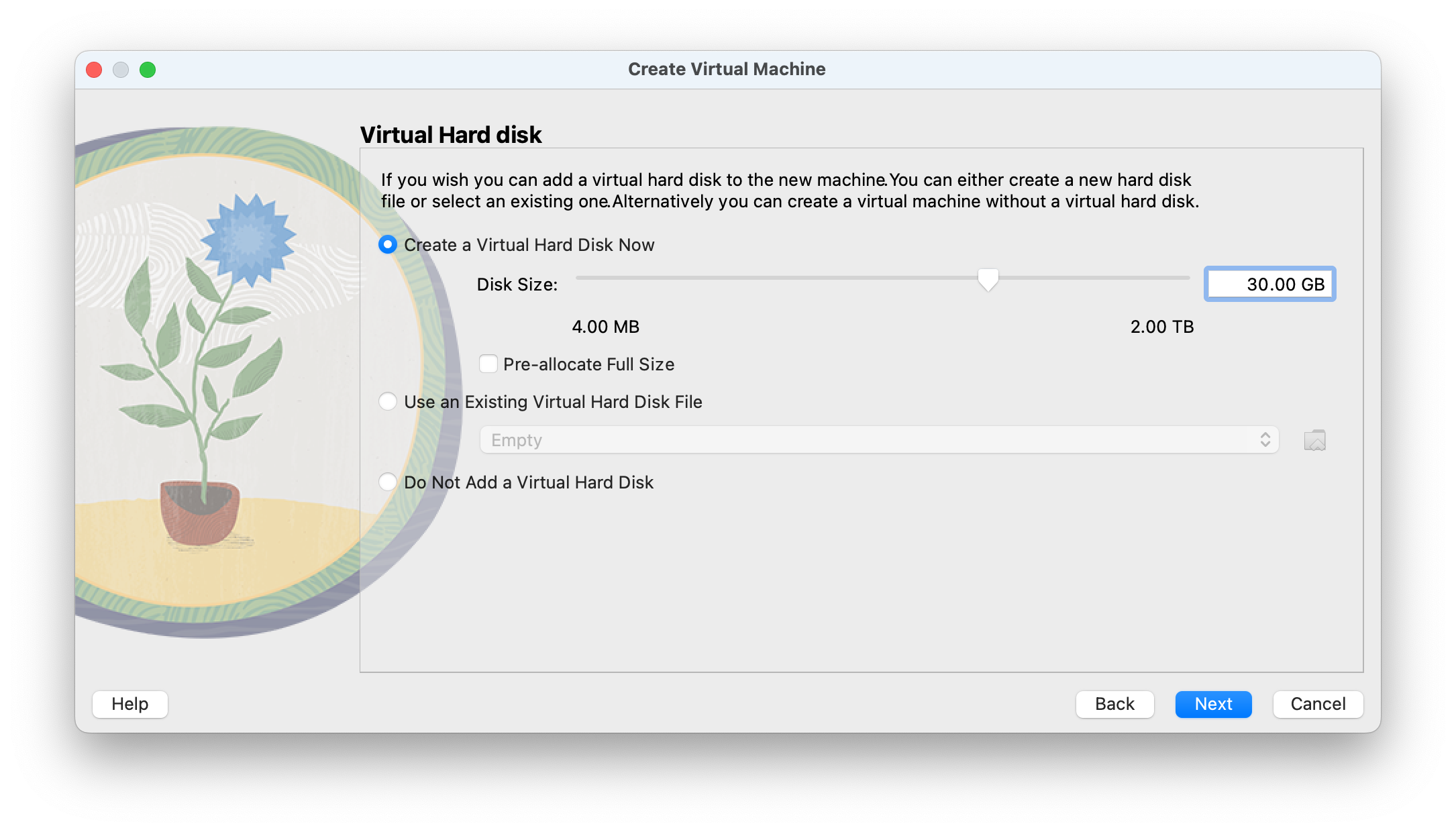
Now allocated disk space for VM
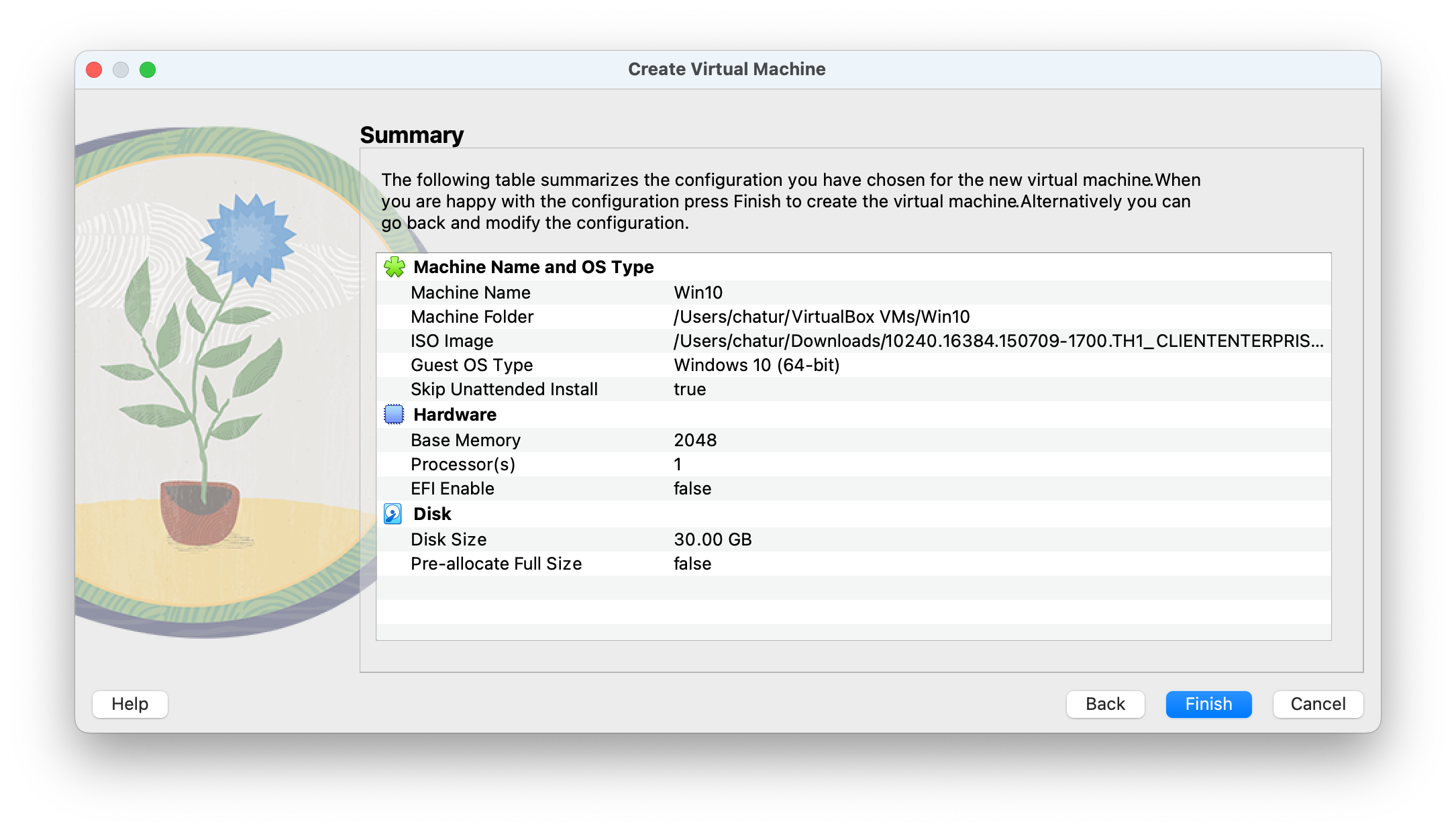
Summary and create vm
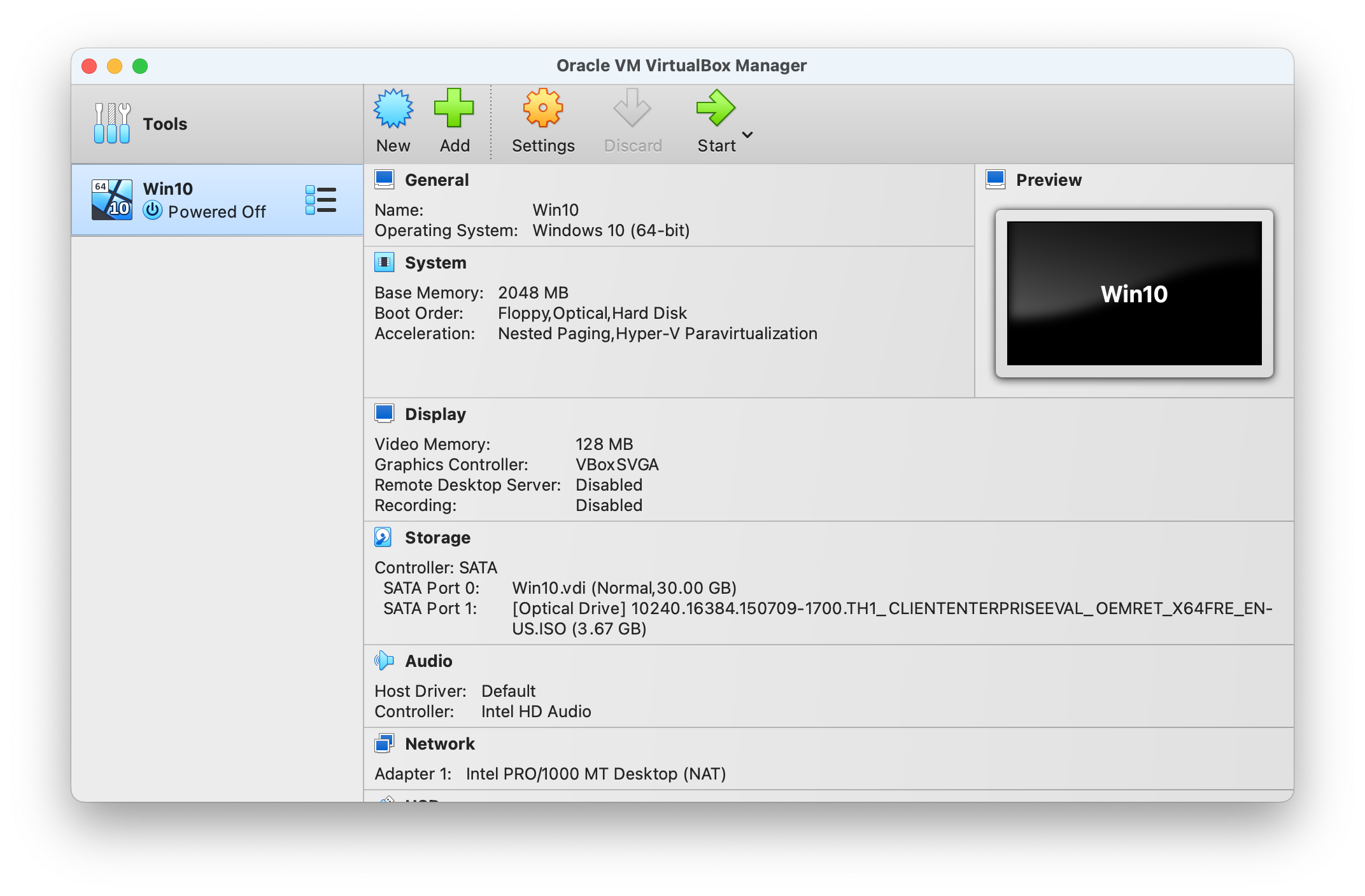
Now Start VM to start installation of Windows 10
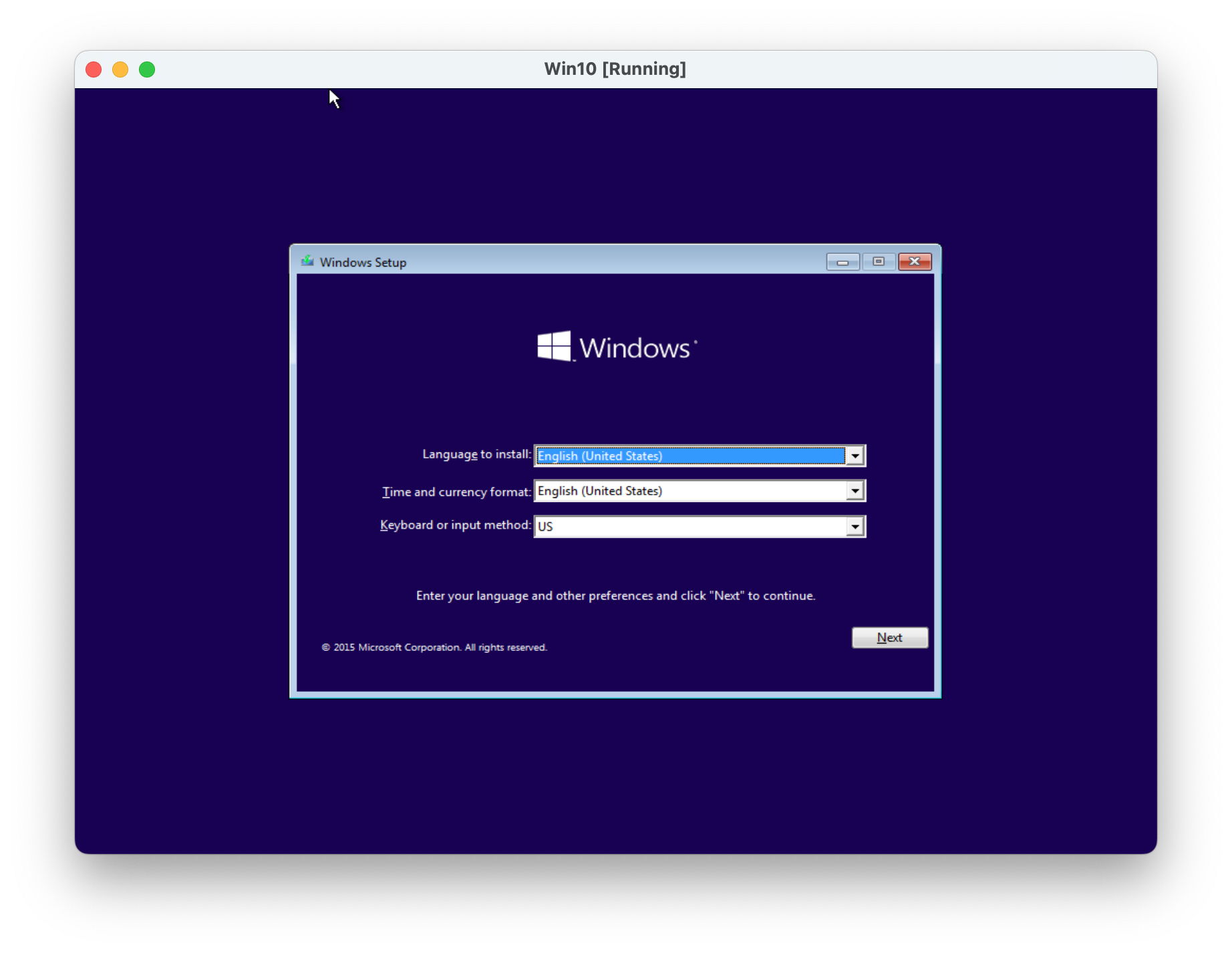
Windows installation screen and select desired language, time and currency format and keyboard or input method, then click Next
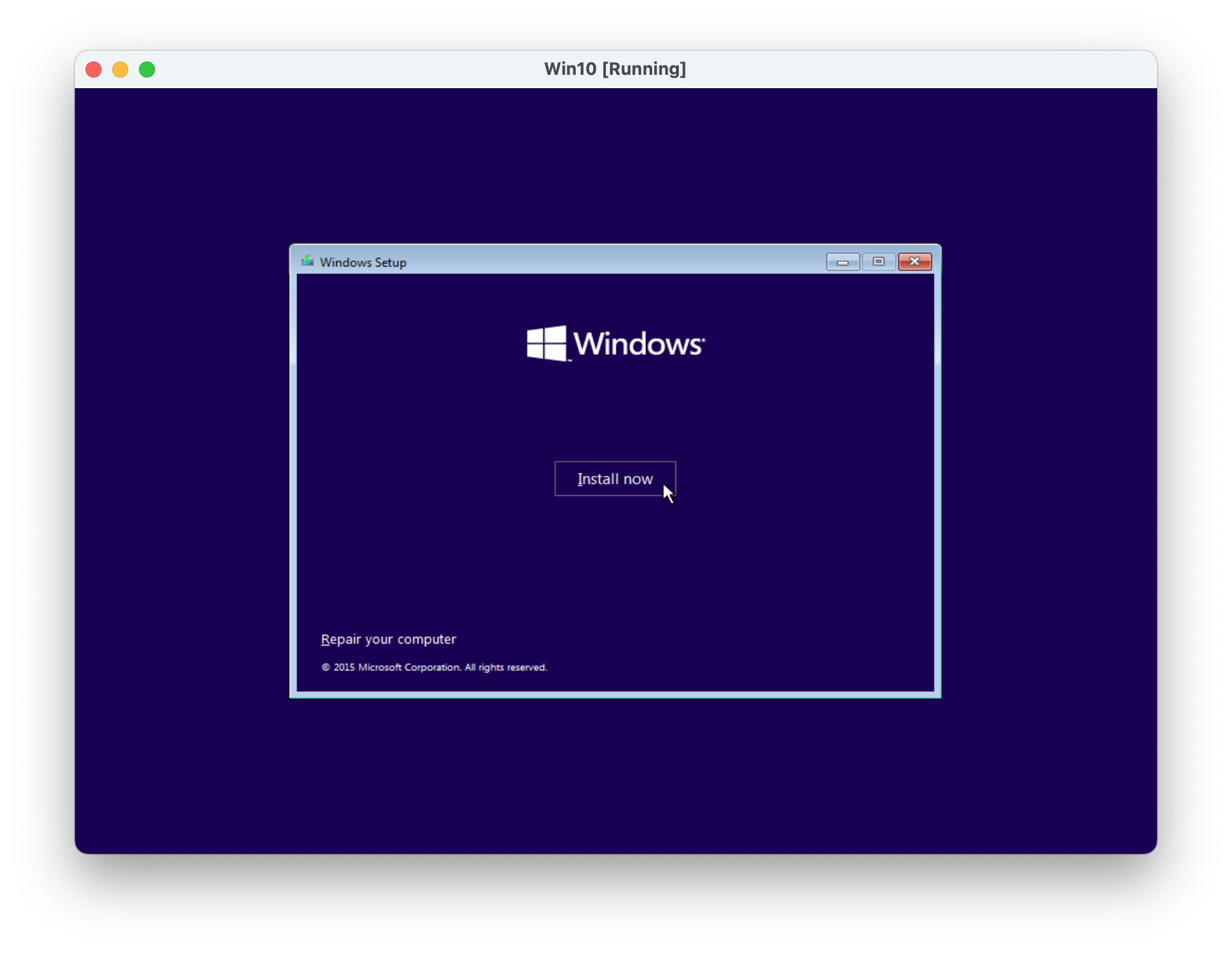
Now click Install now button
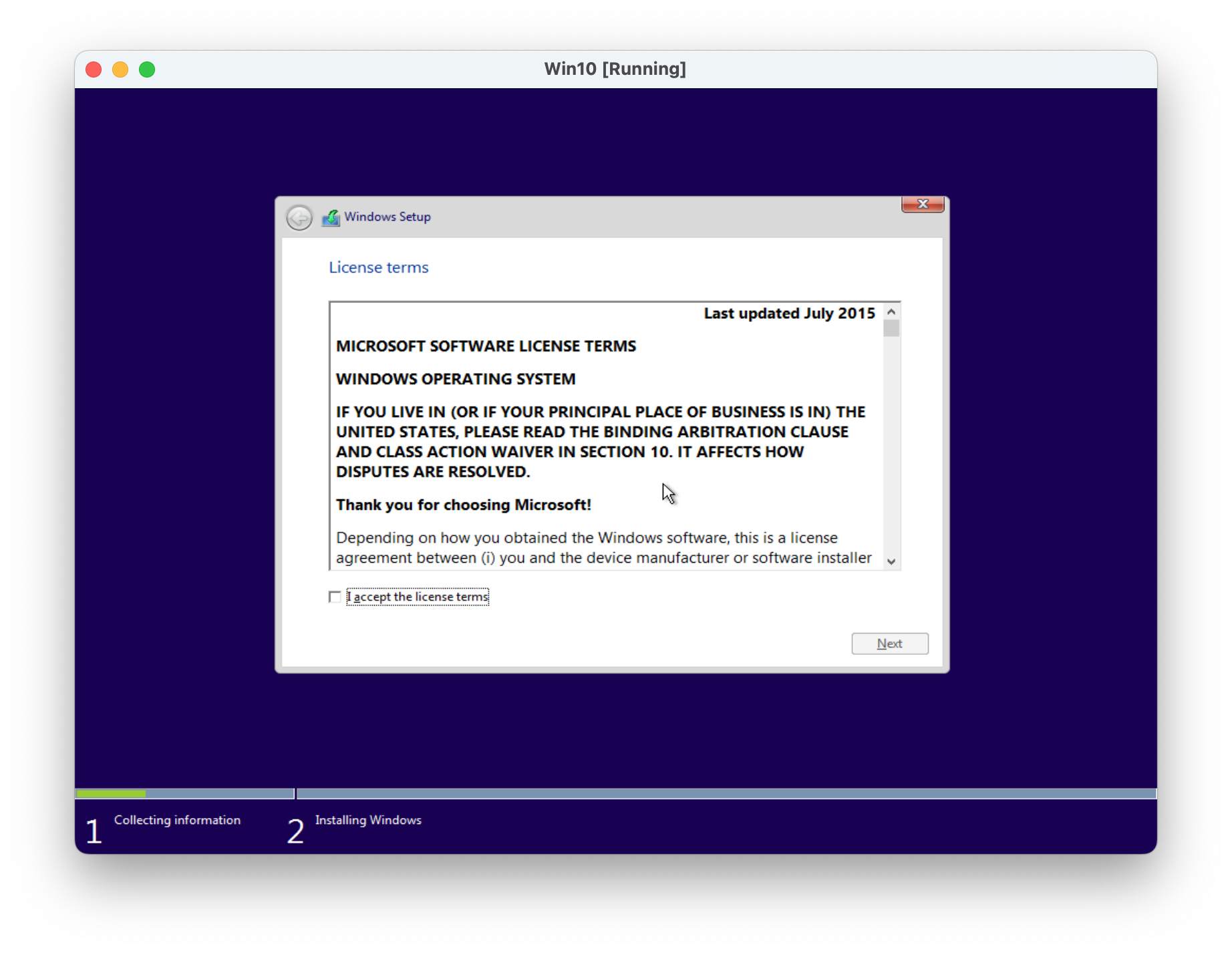
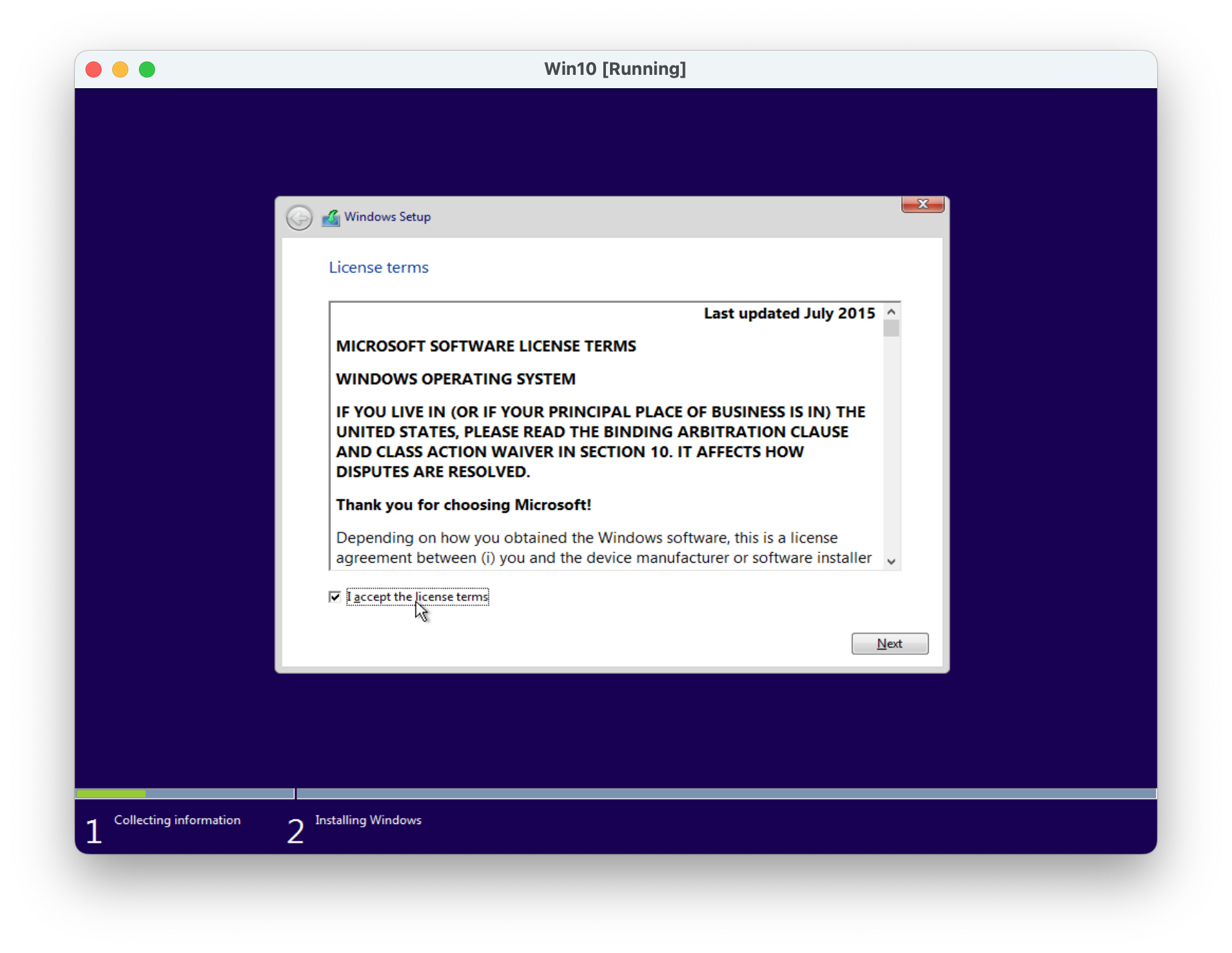
Now select licence terms by clicking on checkbox "I accetp the license terms" and click Next
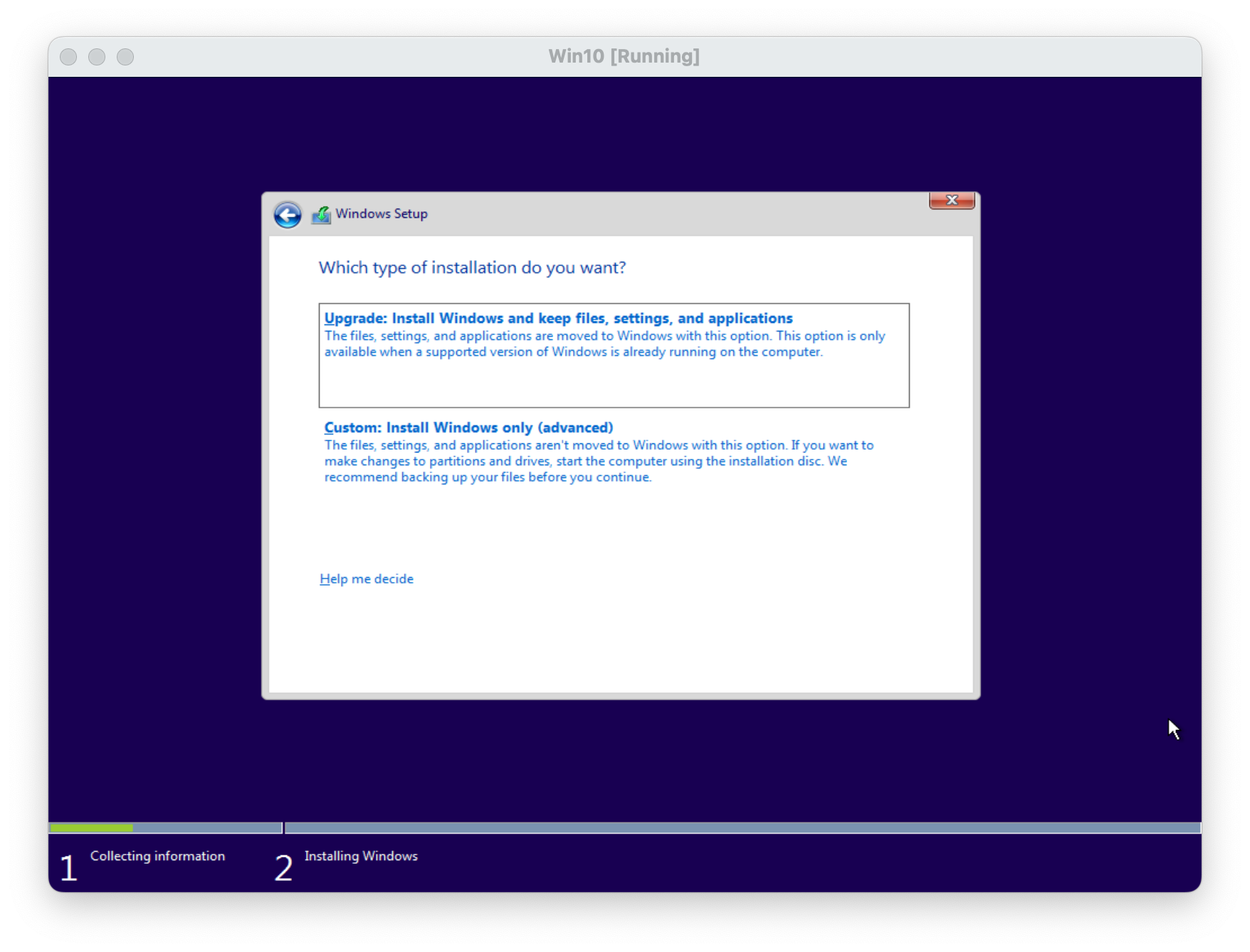
Now click on "Custom: Install Windows only (advanced)
Now partition Disk by clicking on New
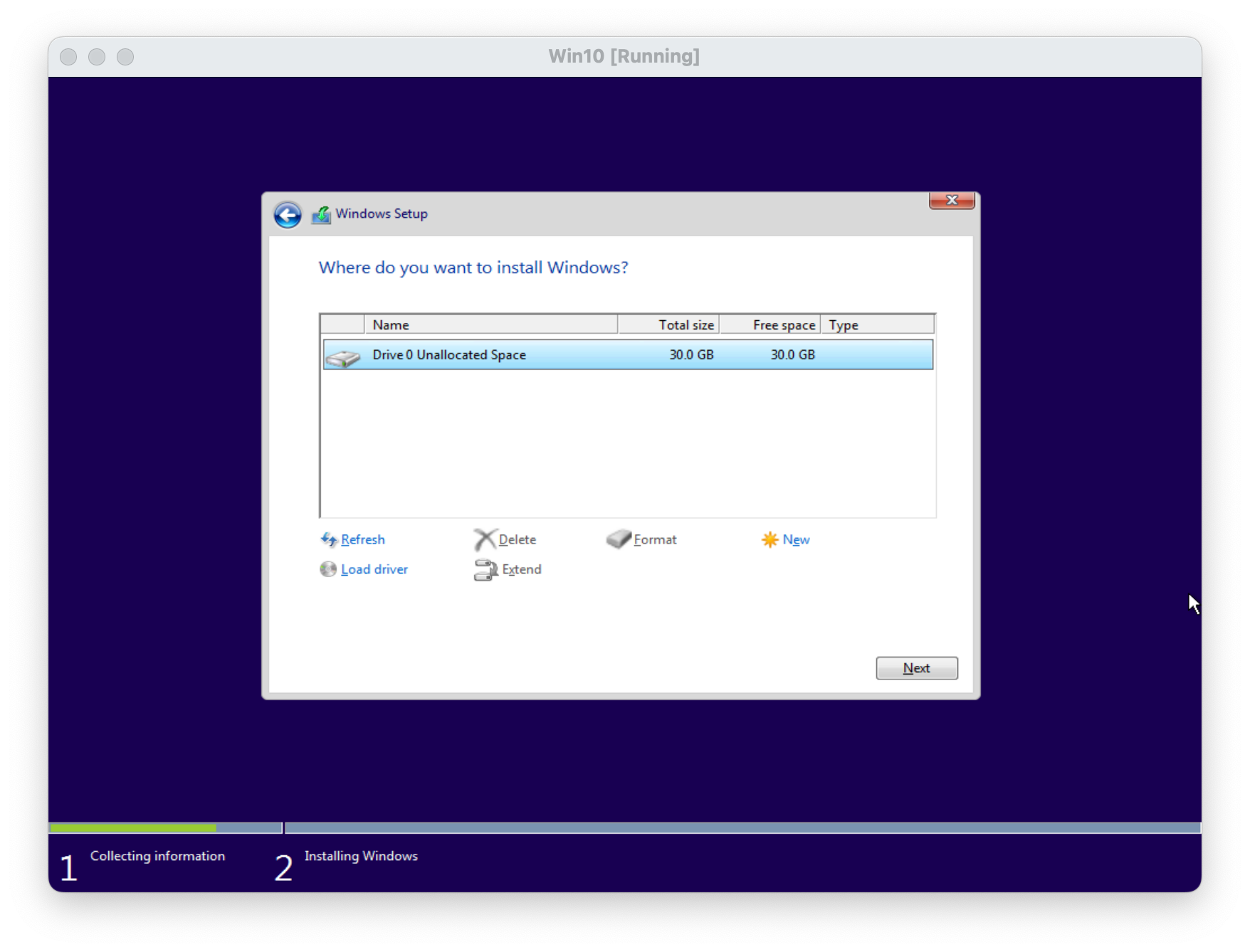
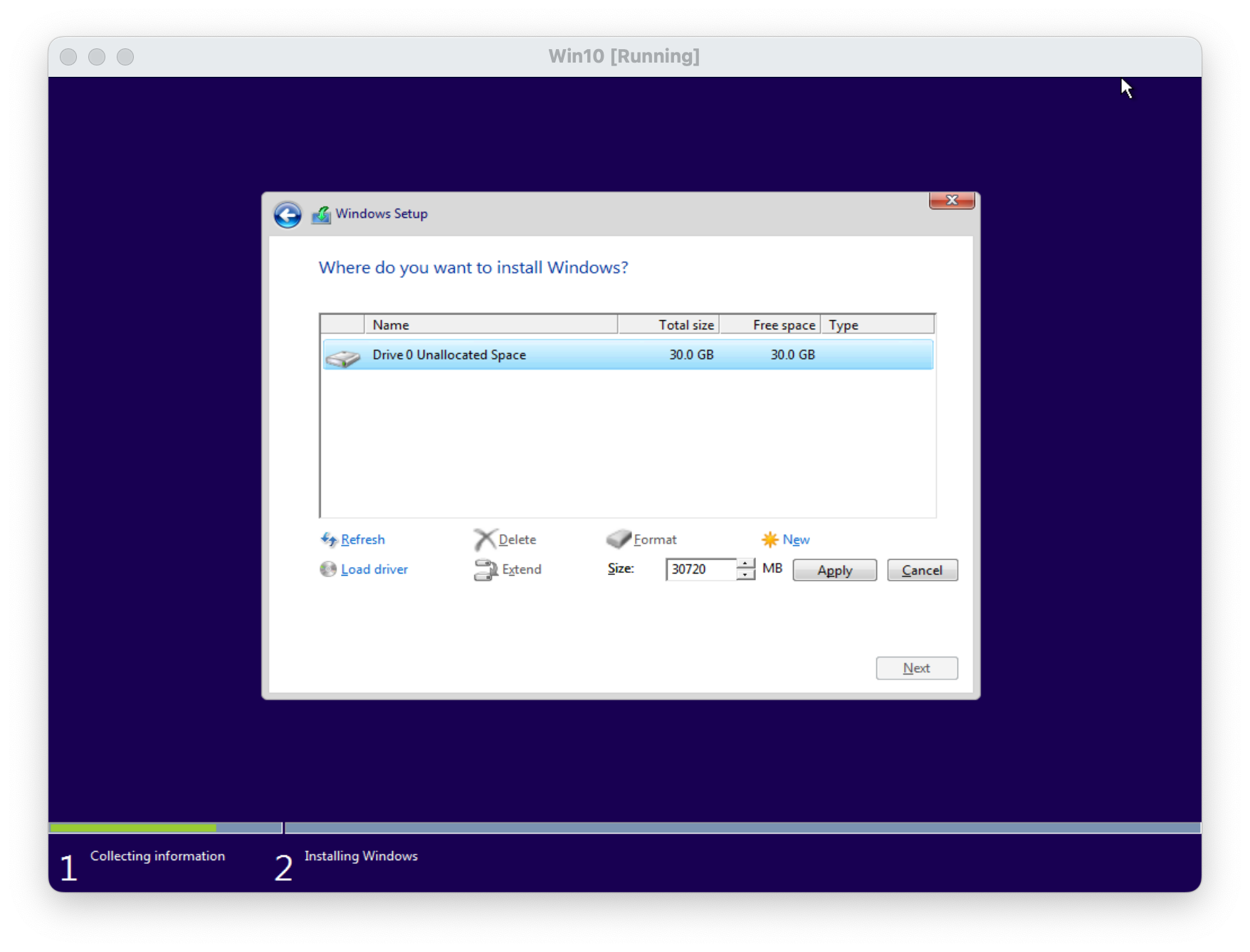
Click OK on popup window to proceed installation
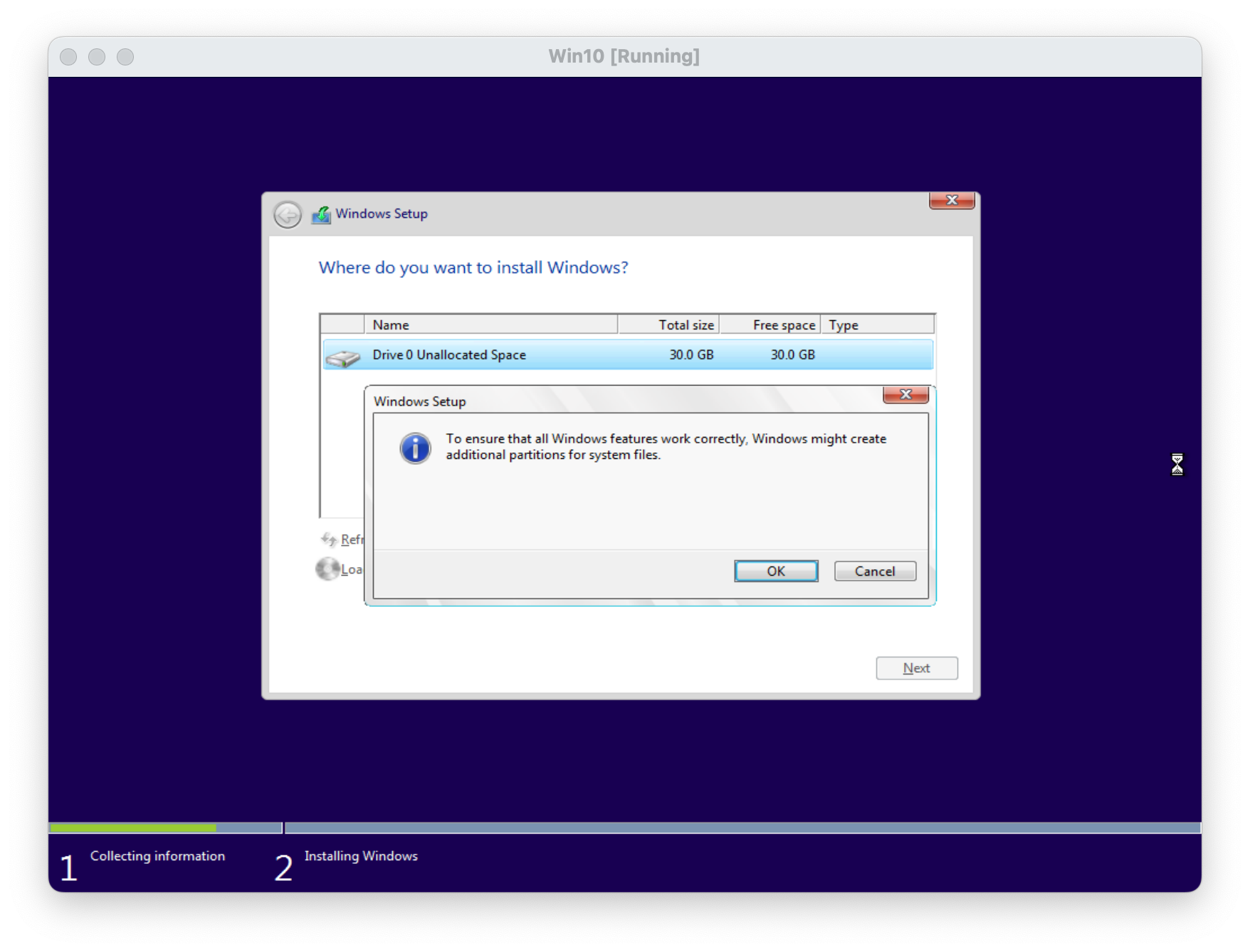
Installing Windows screen and windows will start to install wait till it installation is complete.
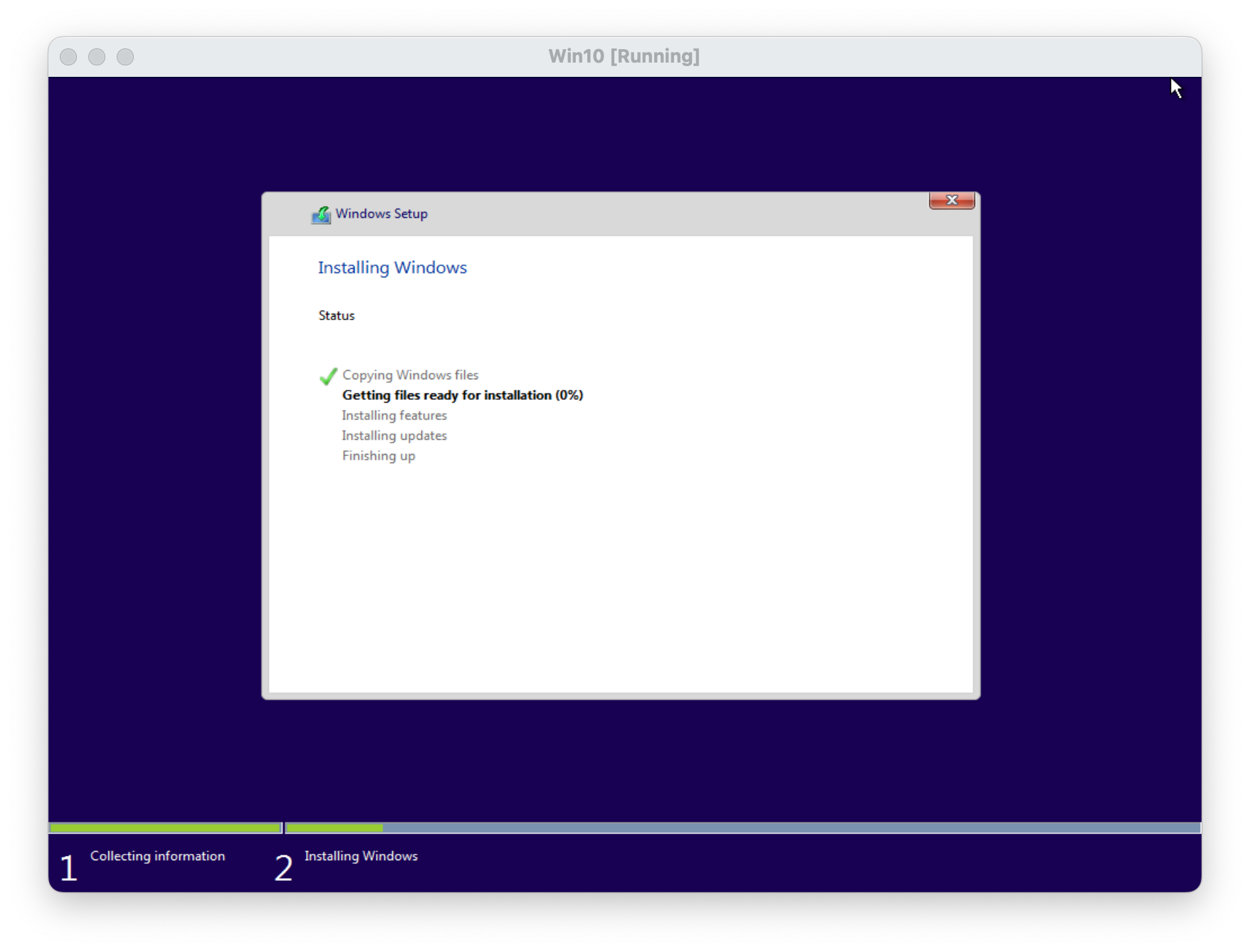
Installer is confirming to restart VM to continue final installation
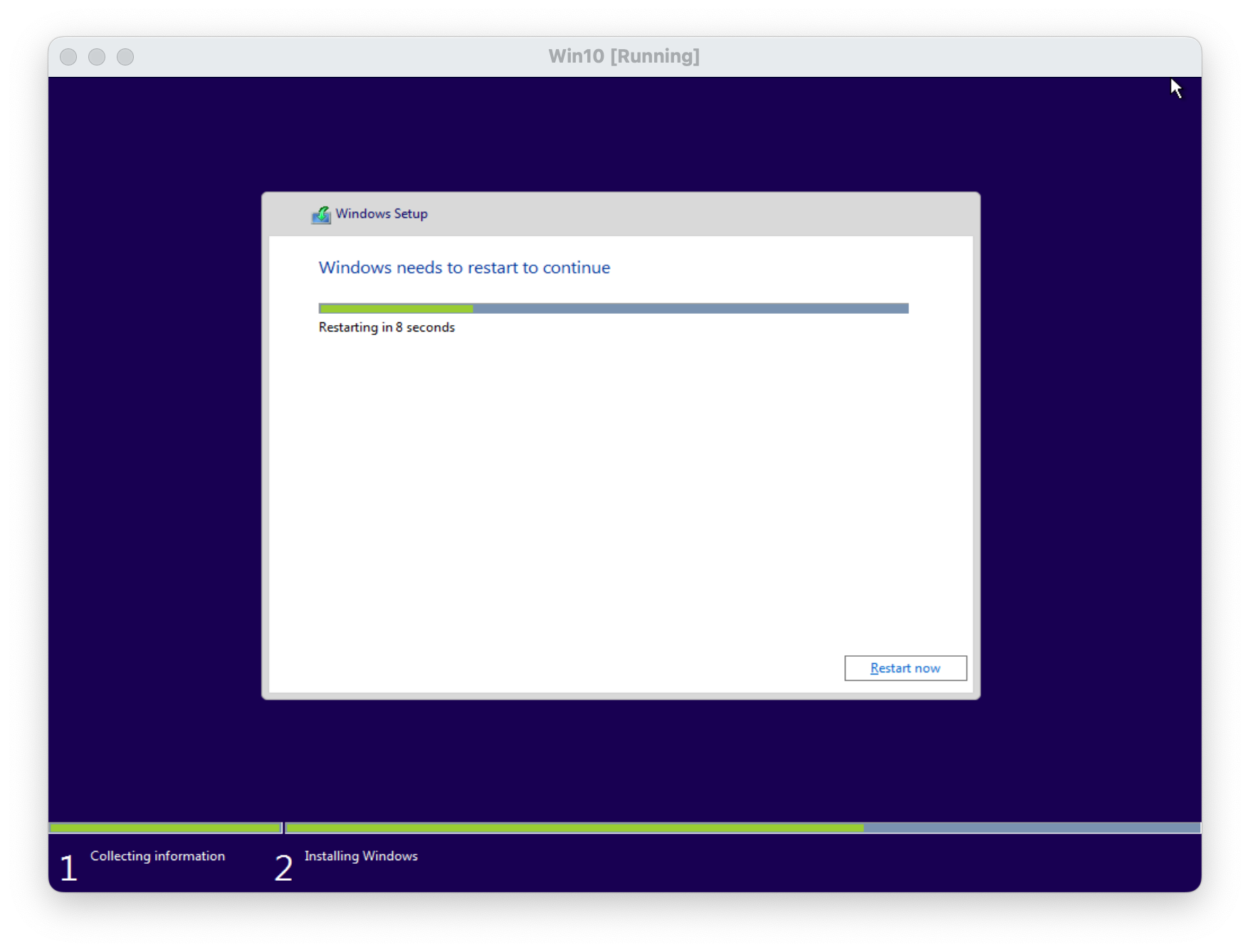
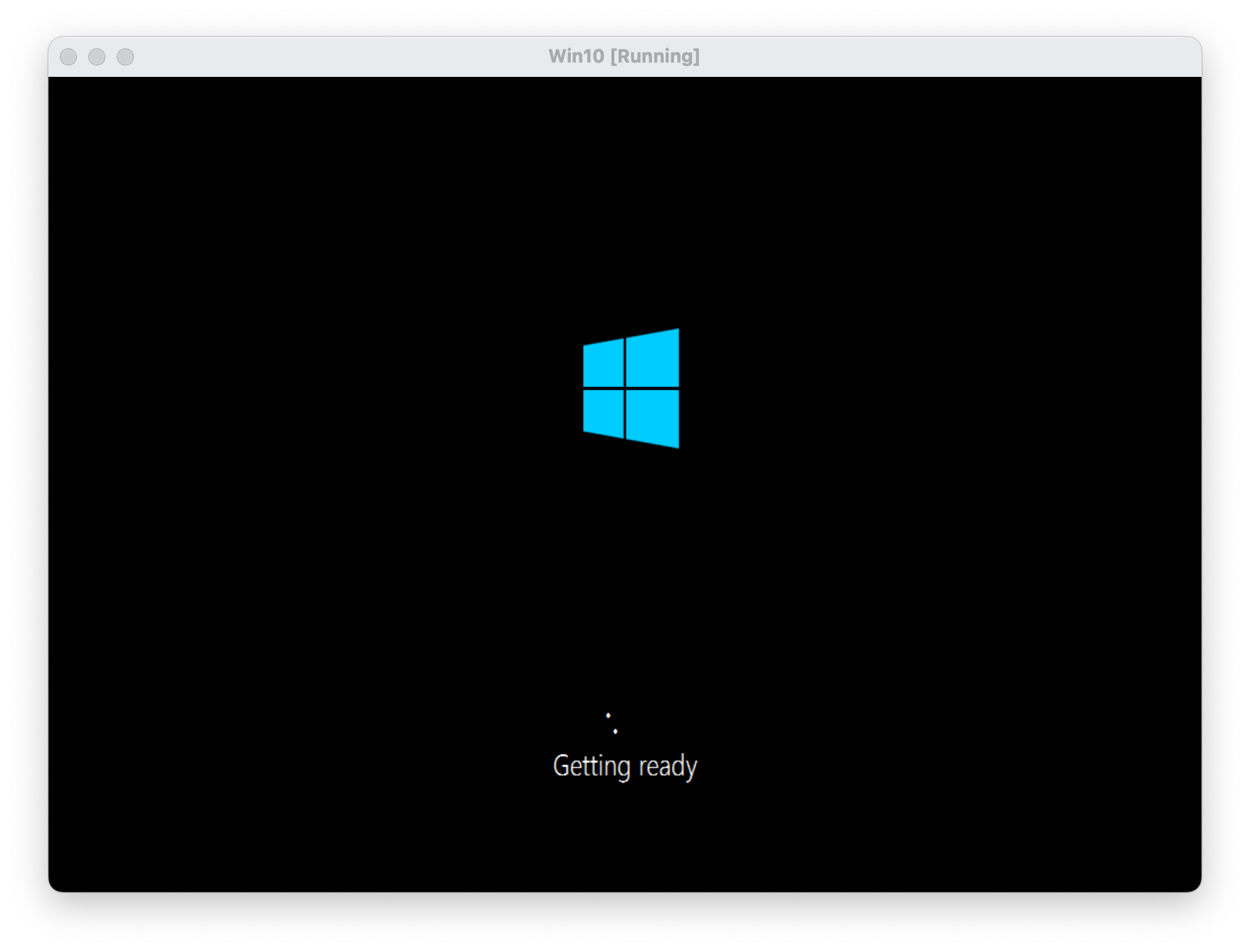
Restarting Windows VM, it will restart couple of times and it normal process.
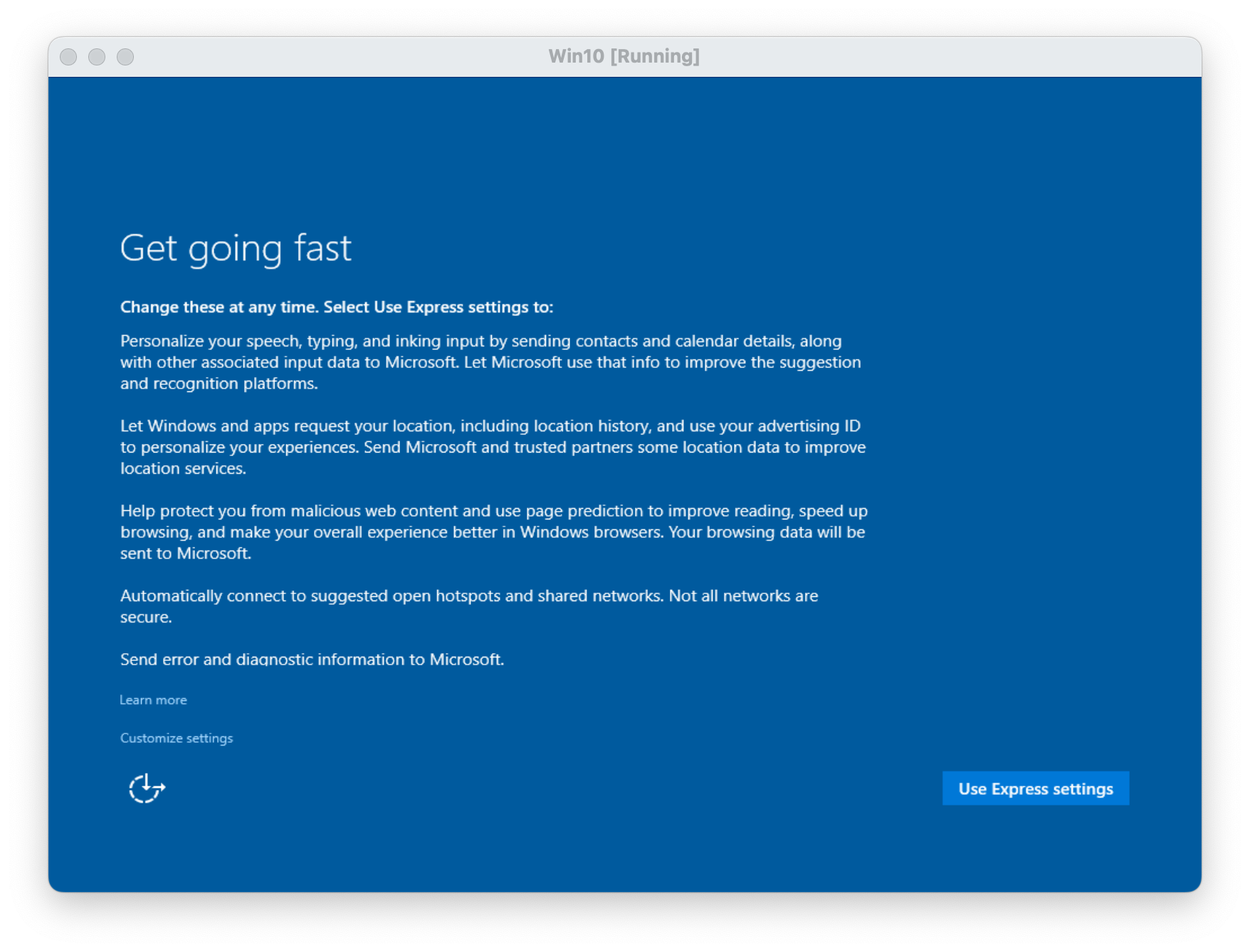
Post installation setup, please follow on screen instructions or click "Use Express settings" for first time windows installers
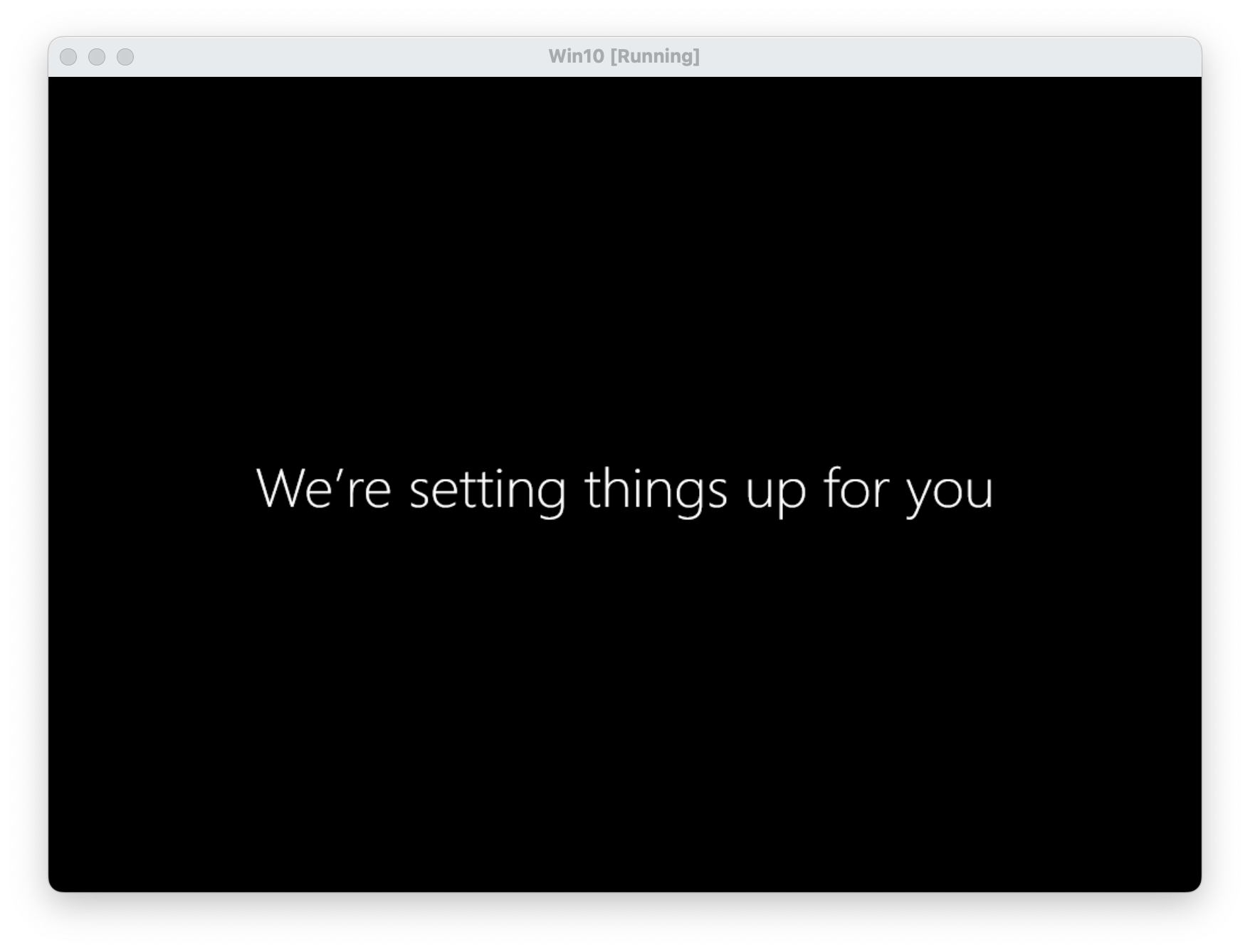
setting up windows
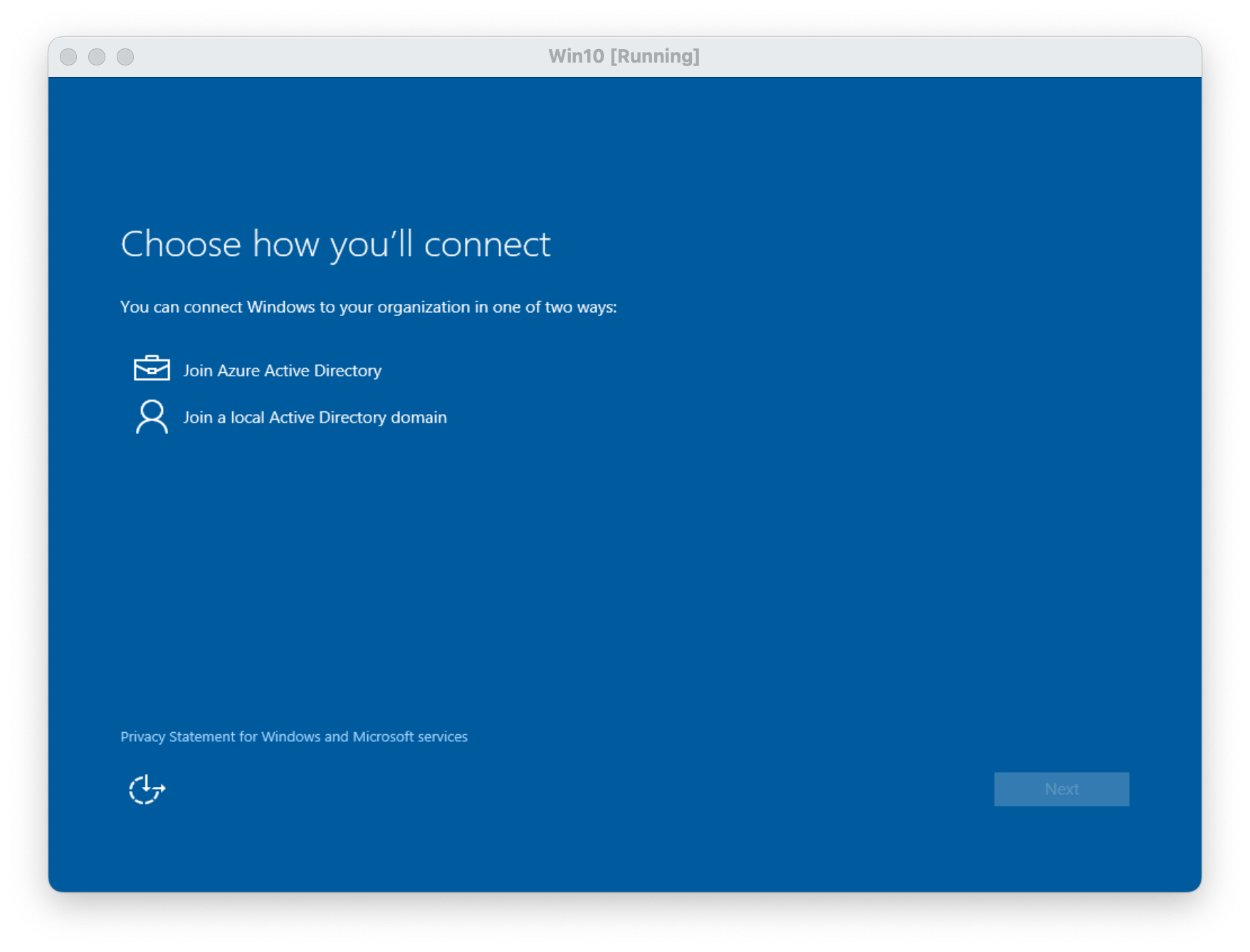
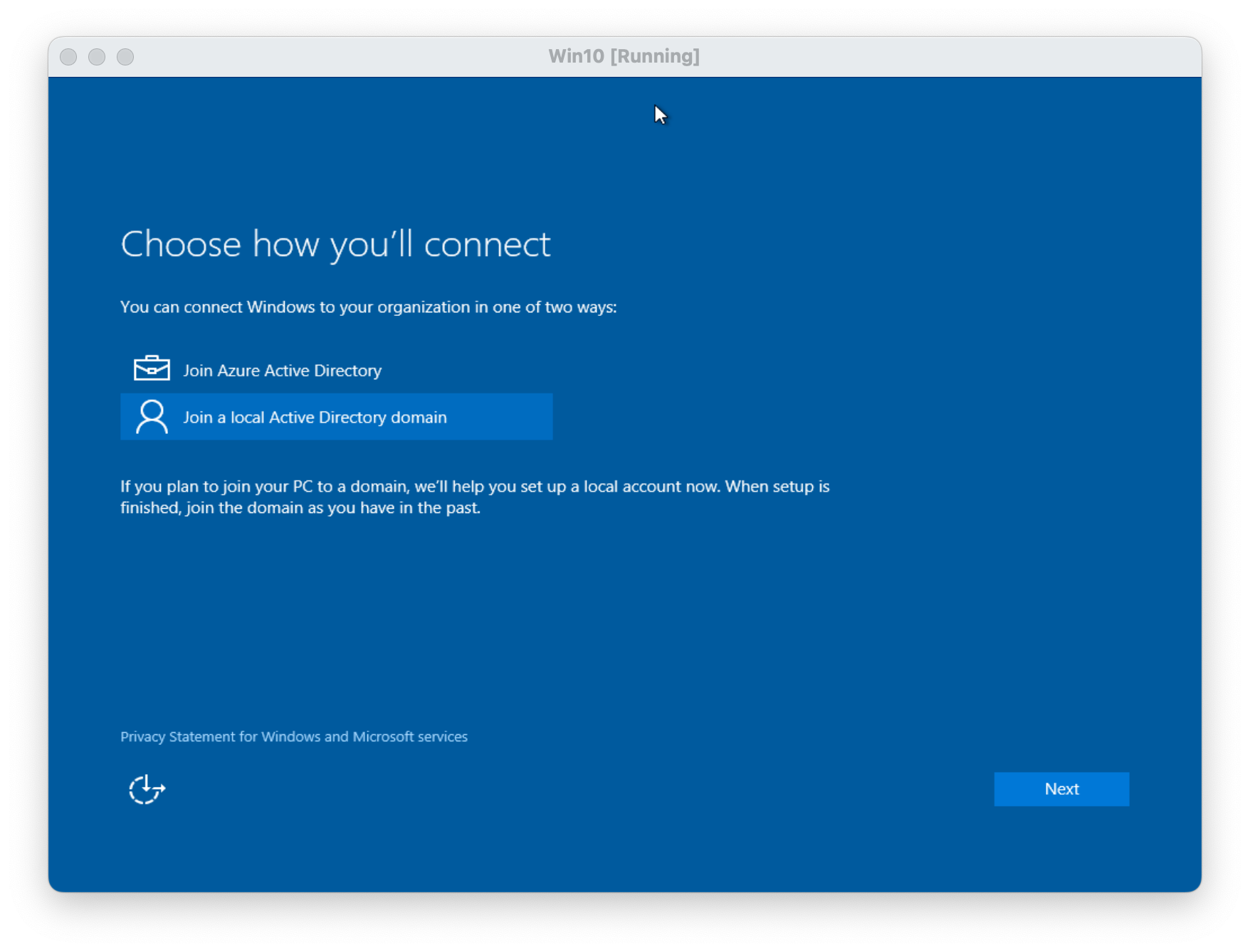
Now click on "Join a local Active Directory domain" and click Next
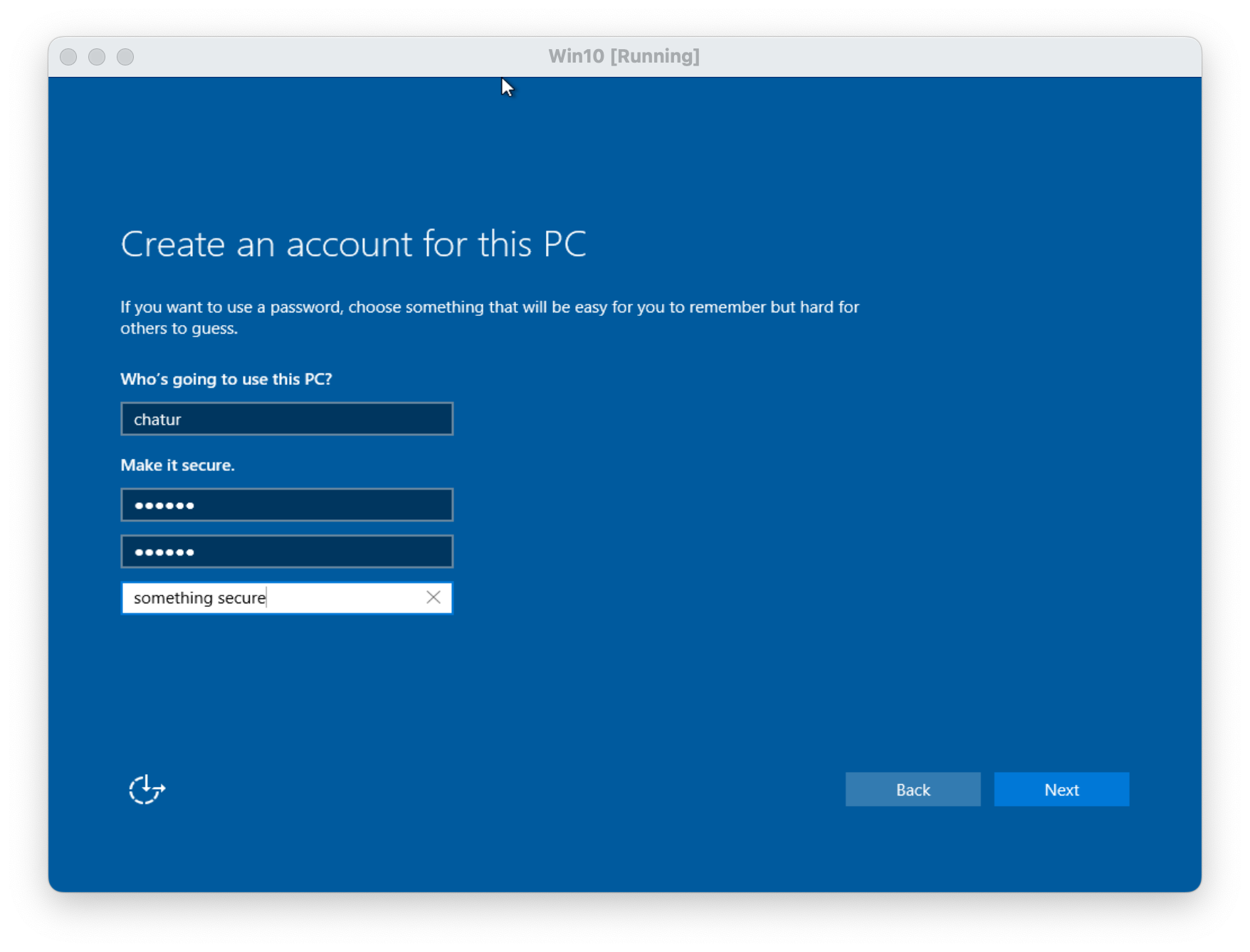
Create user, fill in your details and click Next
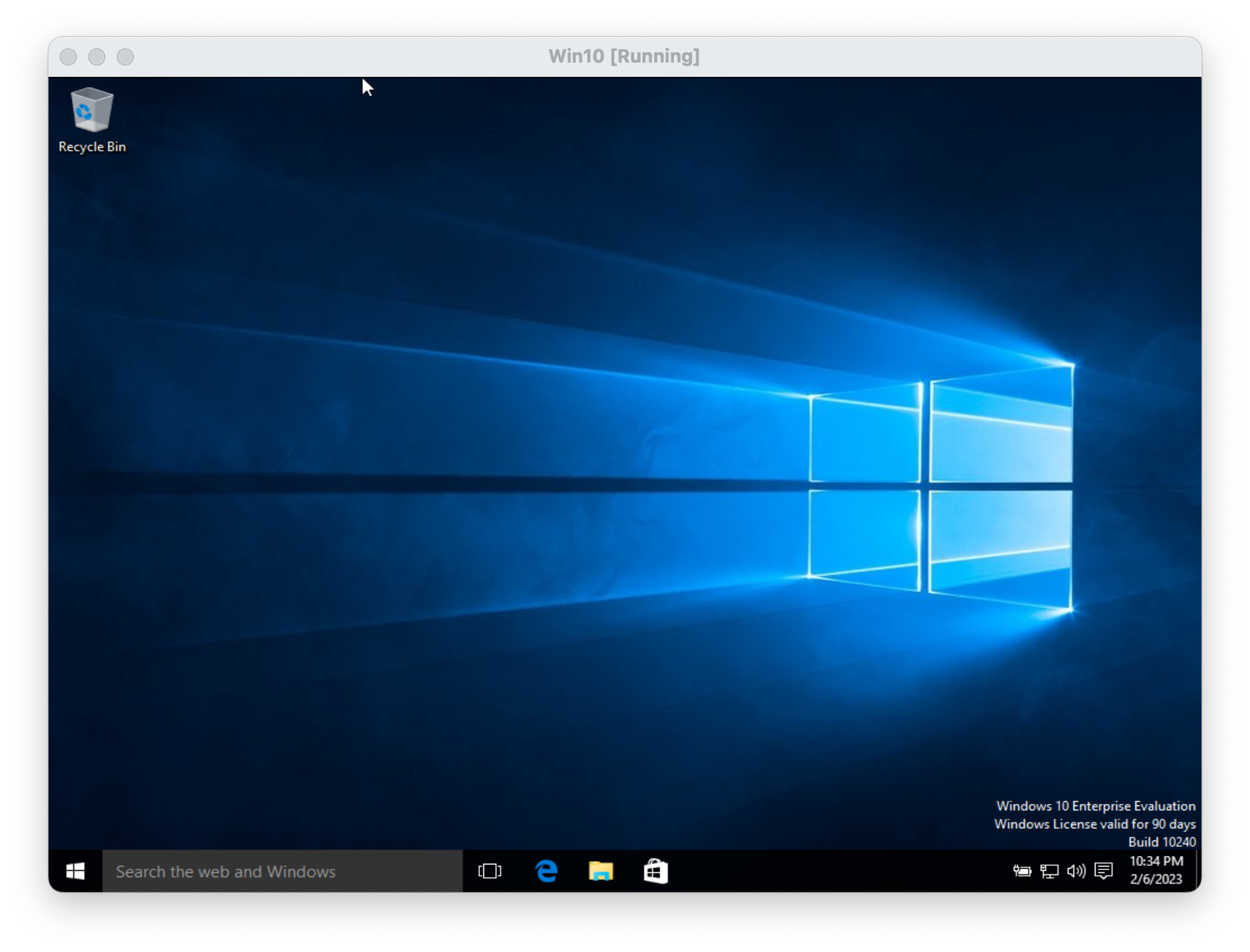
After some time you will login to windows and bring to window desktop screen
Optional: Install VirtualBox Guest Additions
This concludes Microsoft Windows 10 installation on VirtualBox